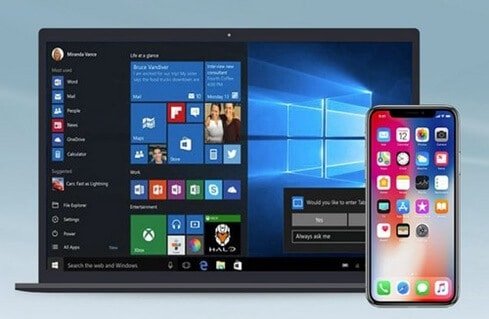
Are you looking forward to a Complete Guide on how to transfer Photos from iPhone to PC well this content would give you what you need? If you have used an iPhone before, or you have taken a photo using an iPhone, you should definitely know that they have one of the best cameras when it comes to the smartphone. Now, if for some reason, you want to transfer a picture you took with your iPhone to your PC, then follow the steps I would be giving to you and have your mind blown away.
There are several methods you can make use of when you want to go through this process. You can choose to do it wirelessly, or you can do using an iPhone USB cable. Or, if you have your photos stored in the cloud, you can transfer it from iCloud to your PC. Whichever method is convenient with you, expect it in this content. So, if you want to make use of the picture as your profile picture, want to use it in your Facebook on your PC, or you want to transfer it from your friend, then this content is what you need to do that.
In the previous paragraph, I stated the three methods that are possible for transferring pictures, and now below I would be giving you what you need on the Complete Guide on How to Transfer Photos from iPhone to PC. They include:
To me, this is one of the most straight forward processes, and anyone who regularly transfers file from smartphones to PC should be able to figure out this process without even looking at the methods. All you have to do to transfer using a Cable is:
Note: any other transfer aside photos is not possible on the iPhone. And you cannot transfer any application, videos, or photos to the phone, you can only take from it.
Recommended – Download Latest Xender App for iPhone
This method is not so complicated, but to go through with it, you need to have an iCloud account. iCloud is a storage service offered by Apple. This allows you to upload media from your iPhone to your iCloud account. You can choose to upload those photos from your iCloud to other devices. To transfer from iCloud to Phone:
With this, any new photo you take would be uploaded into your PC automatically as long as your WI-FI is on.
To go through this process, first, you need to have windows 7 on your PC. This is mainly because Windows 7 computers do not have a photo app.
Once they have been imported, they would be organized automatically into folders by date of the import.
And these are the main methods of transferring photos from your iPhone to your computer. if you go on the web, you might find other interesting methods, but so far these are the best I have come across so far.
Friedrich Stiftung Scholarships 2024 - Pursue your studies in Germany. Good news! Applications for the…
NL Scholarship 2024 - Start your study adventure in the Netherlands. Good news! NL Scholarship…
Shiraz University of Medical Sciences Scholarship 2024 - Pursue your studies in Iran. Good news!…
Edith Cowan University Scholarship 2024 - There is an opportunity for you to pursue your…
Southern Cross University Scholarships 2024 - Pursue your studies Australia. Good news! Southern Cross University…
Bond University Undergraduate Scholarship 2024 - Start your study adventure in Australia. Good news! Bond…
