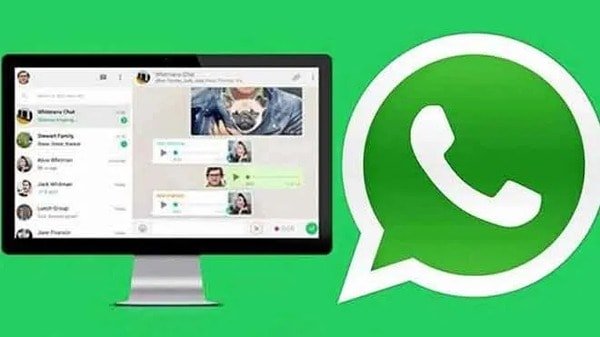
How to use WhatsApp on PC and computer without connecting or using your phone is a question many WhatsApp users have been asking, and seeking answers and guide to it. Interestingly, this is what this article covers, as we show you below how you can open and run WhatsApp on your laptop without your mobile phone.
WhatsApp as an instant messaging app was primarily made to be used on mobile phone since it is a mobile application, but Meta (Facebook) the parent owner of the messaging app has adopted other ways users can make use of the app other than mobile phones. Today you can access your WhatsApp on PC or computer system via WhatsApp web feature. This is very easy to do, and this is why we put up this piece of post to show you how to make use of your WhatsApp without connecting to phone.
While many users would access their WhatsApp on phone, a good number of people want to access WhatsApp on their computer or PC. This is possible today because WhatsApp has enabled the features which makes this possible, and it is through WhatsApp web which enables you link other devices to your WhatsApp.
WhatsApp web is feature that allows WhatsApp users connect their WhatsApp to computer or PC, and as such be able to run their WhatsApp on PC instead of mobile phone. WhatsApp does not have official desktop app for PC, and so WhatsApp web gives you that access to use WhatsApp on your PC.
To connect WhatsApp web on PC without connecting to phone you will need to access WhatsApp web on web.whatsApp.com
Meanwhile, there are two ways to access WhatsApp web using your PC, one of the two is the system provided by WhatsApp, and this way requires you to scan a QR code that would be generated on your WhatsApp from your mobile device.
The second way is the method we have revealed below – the use of emulator, and it makes it easy for you to access WhatsApp even when you can’t or don’t want to scan to set up WhatsApp on your PC.
Instant Messaging? – Like with your mobile phone, you can also do your instant messaging on your WhatsApp web. If you scanned the QR code to connect your WhatsApp to your PC, then you would have access to your contacts.
However, if you use the second method, which would be revealed, you would need to add your contacts to your WhatsApp contact list on your PC.
Group Chat: You can engage in group chat and you will see all your group messages when you access your WhatsApp via WhatsApp web.
Share Photos And Videos: On WhatsApp web, you can share and forward photos and videos to your contacts. And you can view all photos and videos sent to you by any of your contacts.
Watch Status Upload: When your contacts upload their status updates, you will be able to see and view them on your WhatsApp web.
Uploading Status Updates: Uploading pictures and videos on your status is one of the highlights of using WhatsApp, and you can also access this feature if you’re using the latest version of WhatsApp. But on WhatsApp web, you will not be able to upload status update.
Voice and Video Calls? – If you connect your WhatsApp web using the QR code, you would discover that this feature isn’t available to use on your PC. You cannot make voice calls and video calls on WhatsApp web.
But there’s good news, the second way to use WhatsApp without your phone is by using an android emulator, and you would be able to make your video and voice call through this method.
There are many Android emulators which you can search for and download, however, you have to select carefully, so you don’t download the one which may turn out harmful to your device or privacy.
After selecting and downloading the WhatsApp emulator of your choice, proceed to install WhatsApp emulator from this app. Next, open WhatsApp on your PC, enter your mobile number, a verification code would be sent to the mobile number you entered.
Enter the verification code, and when authentication is complete, you can start using your WhatsApp web on your PC.
PS – You can’t use the same mobile number to run your WhatsApp on your phone and your PC at the same time when you use the second method.
Follow this guide below to connect your WhatsApp to your PC and be able to use it without connecting your phone when you want to make subsequent connection;
1. Open your WhatsApp app from your phone.
2. Tap on the “Three-Dots” Menu
3. Tap the “Linked Devices” option
4. Now tap on “Link A Device”
Make sure you are on web.whatsapp.com on your computer browser
5. Tap “OK” and scan QR Code on your computer screen. This is done by making sure that your phone camera captures the QR code on the device you want to connect.
There will be automatic connection once the scan completes successfully. Once you have made this connection, you can keep your phone anywhere or even have your turned off, and still be able to make use of your WhatsApp on the connected device.
With WhatsApp Web, you can access the popular chat messenger on Mac, Windows, iPad, or Android tablets. WhatsApp Web is very easy to set up on any of these devices and the good thing is that you can use WhatsApp Web without a phone. … WhatsApp Web requires you to have your iPhone or Android phone near your computer to use.
WhatsApp can be used on your desktop without a browser. To install WhatsApp Desktop on your computer, download it from the Microsoft Store, Apple App Store, or WhatsApp website. … Windows 8.1 or newer. macOS 10.10 or newer.
If you do not have WhatsApp already, and you want to download WhatsApp, or you want to update your existing WhatsApp, you will need to visit playStore for latest WhatsApp download.
Friedrich Stiftung Scholarships 2024 - Pursue your studies in Germany. Good news! Applications for the…
NL Scholarship 2024 - Start your study adventure in the Netherlands. Good news! NL Scholarship…
Shiraz University of Medical Sciences Scholarship 2024 - Pursue your studies in Iran. Good news!…
Edith Cowan University Scholarship 2024 - There is an opportunity for you to pursue your…
Southern Cross University Scholarships 2024 - Pursue your studies Australia. Good news! Southern Cross University…
Bond University Undergraduate Scholarship 2024 - Start your study adventure in Australia. Good news! Bond…
