
How To Delete Facebook Events
These days Facebook has become one of such platforms on which people make publicly events announcement. People choose to announce such events as meetings, birthday parties, social gathering and other such events using the Facebook events platform.
Nevertheless, there comes a time an event has expired or wouldn’t just hold any more….and deleting such Facebook events become necessary.
In this article, we would should you how you can comfortably delete any Facebook events using the Facebook official website or using the Facebook mobile app in your phone.
Learn – How To Permanently Delete Facebook Account
The Steps To Delete Facebook Events (Using Facebook Website)
Firstly, login to your Facebook account, by accessing the Facebook website.
Enter your email and password and click on “Login”
Then;
Step 1: Click the Facebook logo in the top-left corner of the website (This will automatically bring you to your News Feed)

Step 2: Click the “Events” button on the menu on the left of the screen.

Step 3: Look for and Select the event you want to delete to load the event’s page.

Step 4: Press the “Edit” button found below the event’s header image.

Step 5: Click the “Cancel Event” link.

Step 6: click the “Yes” button to confirm you want to delete the event. Once clicked, such Facebook events is cancelled and deleted.

How To Delete Facebook Events Using Facebook App
To delete Facebook events using the Facebook app, simply open the Facebook mobile app in your mobile phone. Login into your Facebook account if you are not already logged in. And then, follow the steps below;
Recommended – How To Add & Block Facebook Friends
Step 1: Tap the ‘three horizontal lines’ Menu icon.
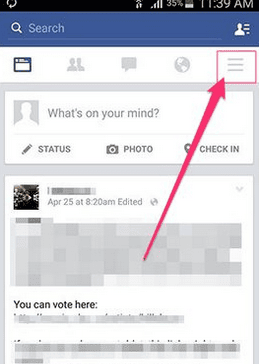
Step 2: Tap on the ‘Events’ button to load your Events page
Step 3: Tap the name of the particular event you want to delete.
Step 4: Tap the ‘Edit’ icon.
Step 5: Tap “Delete event”
Step 6: Tap “Yes” to confirm you want to delete the selected event.
That is all on deleting events using the Facebook official website and using Facebook mobile app. Hope the article was helpful? Make your suggestions and contributions using the comment box below.


